Saturday, July 11, 2020

How to install iOS 14 beta without computer

iOS 14 beta update

iOS 14 beta is finally here available for public. In this article I’m going to show you how to install iOS 14 without a developer account for free. You can download it right on your phone, you don’t need computer to install the latest iOS 14. 

You might have tried checking for updates on your iPhone and pretty obvious, there is no update.

How to install iOS 14 beta without computer | 4 Easy steps

Step 1:

Go to Safari and open up this link.
Step 2:

Once the site open up, scroll down to the iOS section and just click on download. and you’ll be taken to the screen below. 
ios 14 beta installation
You will see the prompt with a message and from here you have to click on allow and once you do so it says profile downloaded. Just close down safari.
Step 3:

Go back into settings now inside of settings the profile should already be downloaded and I recommend accessing it through the general section.
  1. Go to Settings
  2. Within Setting go to General.
  3. Scroll down go to profile and management.
  4.  You’ll see iOS 14 and iPad OS 14. Click on install and enter your password.
Click on install again and then click on install one last time and you’ll be prompted to restart so click on restart.
Now before updating you should know that the battery is supposed to be above 50%, if it’s not connected and make sure it’s connected to a safe Wi-Fi for a successful update.
Step 4:
Once your phone is done restarting unlock it and go inside of settings and go to general then go to software update and wait for the update because it might take some time because these servers are pretty heavy.
Make sure it’s connected to Wi-Fi for faster results. The update is right here you will be able to see iOS 14 public beta, just click on download and the update will start downloading. 
The update will be easy and successful and hope you won’t get any error

How to Install ADB on windows

install adb on windows
Android Debug Bridge or mostly commonly knowns as ADB is a command line tool used to issue commands to Android devices. ADB can be used for variety of actions like rooting your phone, installing, screen recording, debugging apps and removing system applications. ADB provides access to a Unix shell which you can your to run different commands.

How to Install ADB on your windows machine

1. Go to Android Developer website and Download Platform Tools for Window. Linux and mac download option are also on same page.
2. Once download is complete. Go to download folder and Extract the zip file to directory inside the “C” drive.
3. Now got the extracted folder named “platform-tools” open it and then in click on File> Open Windows PowerShell >  Open Windows PowerShell as Administrator.
This is last step in installing ADB on your windows computer.
However if you want to check whether it is working or not. You have to Enable USB debugging inside Developer option on you mobile phone. Here is how to enable USB Debugging on your Android phone.
See Also:  How to remove Bixby without root

Once you have enabled USB debugging on your phone, connect your phone to PC using a USB cable. Make sure you have selected “file transfer” for USB connection. 
A message will appears on your device that says, “Allow USB debugging,” choose “Allow.”. If you do not see the message on your device which says, “Allow USB debugging,” even after you have set everything up as said, don’t worry. There is an easy fix for this, all you have to do is restart your device, and if that didn’t work too, then try changing the USB option from “file transfer” to “transferring images” or “MIDI” 
If you are using your own computer or a computer you trust then check the option “ Always allow this computer” 
Now to check working of ADB. Type “adb devices” inside the command window which you had opened previously & and hit Enter. It will show you list of devices connected

Saturday, June 6, 2020

HOW TO INCREASE INSTAGRAM FOLLOWERS 2020


 There’s no question, Instagram is one of the biggest social media platforms today, and it’s no wonder that many people would want to do great on it. Whether you want the followers for yourself or you own a small business and want to use Instagram as a marketing tool, In this article, I will tell you the best app to increase Instagram followers.

To increase Instagram followers, you need an app called NEUTRINO+.
NEUTRINO+  is a minimalistic app that gives followers in exchange for its in-app currency called “crystal.” We will create a fake account to gain crystals and then transfer them back to our original statement, where we will redeem them to get thousands of followers. This way, we will be able to get followers for our original account without following anyone.     

     WHAT TO DO??         

1. Head over to the play store and download the app called “Neutrino+.” 

2.open the Neutrino+ app, follow the steps to log in with your real Instagram account.

3.Log out of your actual account on Neutrino+.

4. Create a new Instagram account. Make sure that you upload a profile picture and make at least 2-3 posts. We will be using this as a fake account to gain crystals in the Neutrino+ app.

5. Now, open the Neutrino+ app and log in with your fake account.


Gaining crystals 


1. Click on the diamond button on the bottom right corner. Then, click on the big button on the opened screen to automatically start gaining crystals.

2. To get more crystals quickly, click on the star tab on the main screen to get a list of people to follow. Now, start following everyone on the list to get even more crystals.

3. Do not spend these crystals right now.

4. After you have gained enough gems, click on the diamond button on the main screen.

5. Click on the big switch to stop the automatic crystal collection.

6. Now, click on the “More crystals” tab. Go to the bottom of the page. You’ll see a “Transfer crystals” option. Enter your original account and the number of crystals you would like to transfer. Click the send button to move the gems from your fake account to your original account.


Getting followers 

1.Log out of your fake account on Neutrino+ and log in to your original account.

2. The crystals should have been transferred to your account and ready to be spent.

3. On the main screen, click on the star tab.

4. Click on the “CLICK TO START GAINING FOLLOWERS” text. Buy the 10 minutes option.

5. Punish the users who unfollowed you as you gain 60 energy.


            THANK YOU


How To Speed Up Your Computer (Windows 7, 8, 10)


Anyone Who use Computer must faces speed issues. Slowing down the computer is a great problem while you are working with your personal computer. Though your computer was speedy when it was new, but day after day it has been slower than before. Today I am going to tell you that how can you speed up up your computer even if it is older for more than 10 years. Let's go.....


10 Steps to Speed Up your Slow Computer:

1. Power Option

Search power option in the search bar -> 


Hit the power option and then select "High-performance" option.


2.  Disable Unwanted Startup Programs

Go to Task manager ->


Go to Start-Up -> and Disable Unwanted Start-Up Programs.


3. Defragment and Optimize Device

Search "Defragment and Optimize Drives" in the search bar


Then select C drive and Click Optimize ->


4. Delete Unnecessary Temporary Files 

Go to Run and type  "%temp%" 


Then select all files and delete them.


Again Go to Run and type "temp"  


Hit ok. Then select all files and delete them all.


Again Go to Run and type "prefetch"   -> hit Ok


Continue and select all files and delete them all.


5. Clean Up Memory

Go to This Pc -> Select C drive and right-click -> properties


Click Disk Clean up -> System file Clean Up


Click Delete Files...


6. Reduce Run-Time Services

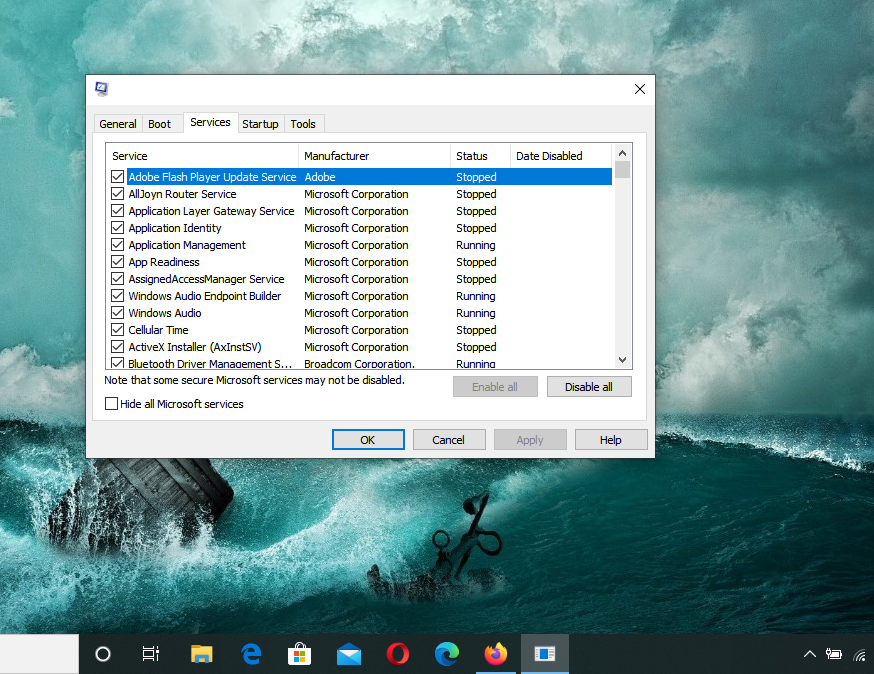
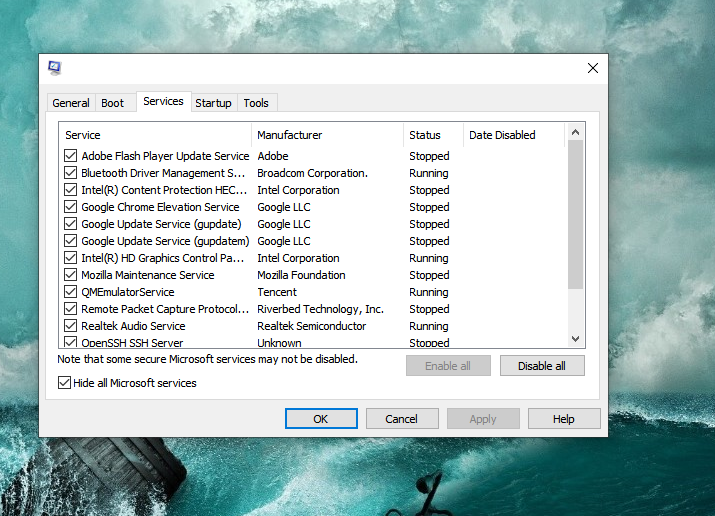
Go to Run and type "MSConfig"  -> hit OK


Go to Services and Check "Hide all Microsoft Services"


7. Registry Tweaks

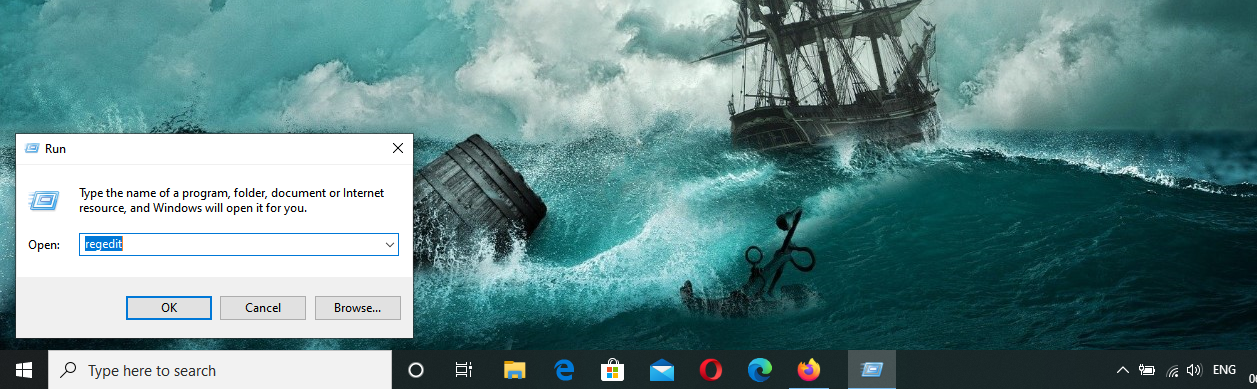
Go to Run and type "Regedit" -> Hiit OK.


Click HKEY_CURRENT_USER -> Control Panel -> Mouse and then click MouseOverTime -> set the Value 10


Then Goto -> Desktop -> find MenuShowDelay and set the value to 10


8. Visual Effects

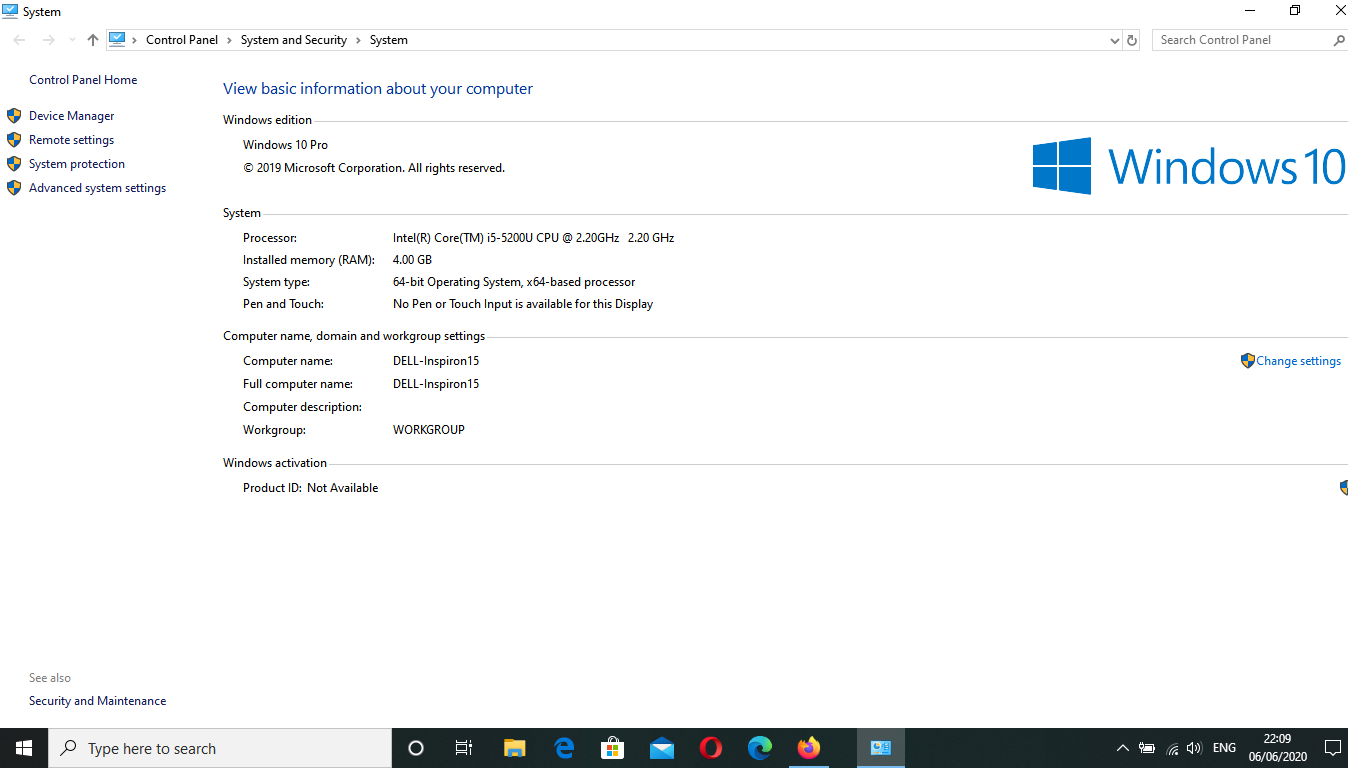
Search "System" in the search bar and Click..->


Goto "Advanced System Settings" -> In performance section Click on "Settings" ->


Check "Adjust High Performance" 


That's it...RESTART your Computer....You will see the Change after doing this all.

I hope This Step will help you to improve the computer performance. If you have some questions then let us know in the comment section..Thanks....